
The Bluebeam Org Admin portal enables admins to manage subscription seats and add/remove/assign users and admins. At ARKANCE, our goal is to take the guesswork out of learning a new system and help you get started with your Bluebeam Revu licenses right away. We have provided the steps you need to follow below, along with links to helpful information for each step.
Set up your Org Admin portal
Register the Org Admin Account
- Check your email for the Bluebeam Invite to Register
- Click Accept Invitation

- Complete the form, fill out all required details, and click Finalize.
- Note: If you have never had a Bluebeam ID, check for a confirmation email to verify your account
- Check your email for your Bluebeam Org Admin Access and click Get Started.
- Sign in with your new Bluebeam ID.
- Select the applicable server.
- You can now access the Bluebeam Org Admin portal.
Add users and assign access
You can add users individually or bulk upload users using a .CSV file. We outline both below so you can choose the best option for your company. If you plan to implement SSO, you may want to delay adding users to your license until after you’ve completed the SSO configuration process. Otherwise, users will receive emails guiding them to create a Bluebeam ID (if they don’t already have one). Once SSO is implemented, they'll log in with their SSO credentials and abandon their previous BBID credentials. Check out our blog to learn more about Single Sign-On: Single Sign-On for Bluebeam is Here!
- Select Users on the left side
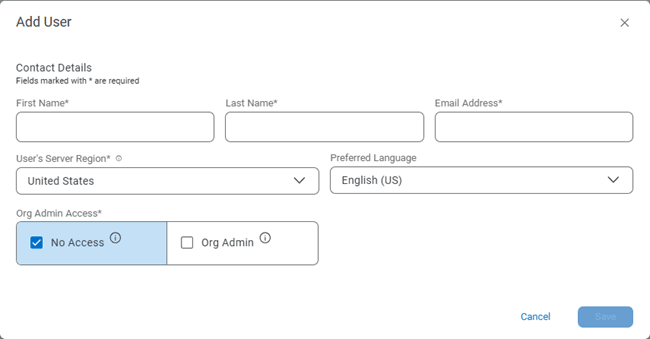
- Click Add User
- Complete required fields* or select Bulk Add or Edit Users and follow the instructions (see below)
Admins can bulk add up to 50 users at a time using a CSV file.
-
Select Users on the left side
-
Select the Bulk Add or Edit Users tab.
-
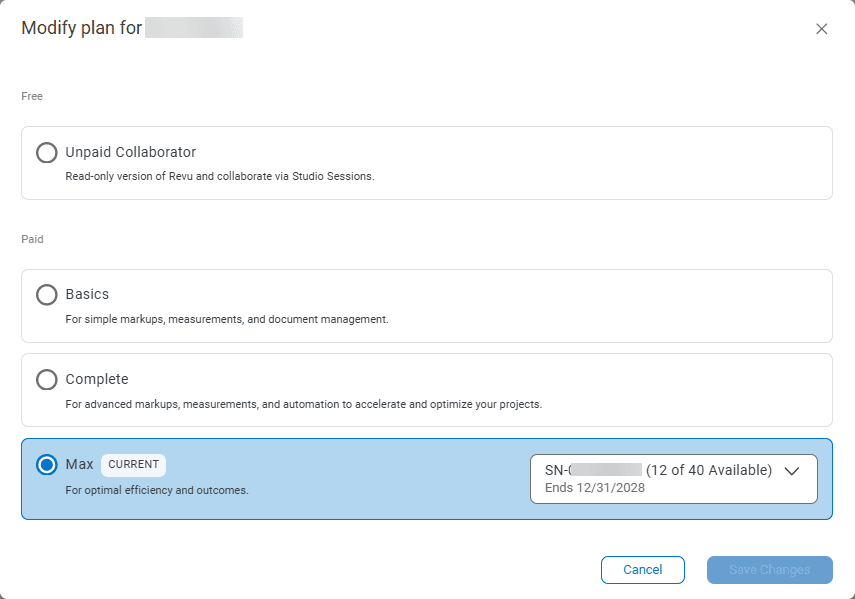
Click Save (the Select a Product Tier dialogue will appear).
-
Grant your user access to the available, desired, license and click Save Changes Note: User invitations will expire, their expiration date is listed next to their user name in the portal. They will remain in Pending status in the Org Admin portal until they access their invitation and create their account. If a users invitation expires, you can Resend Invitation.
Bulk add users by importing a .CSV file
Admins can bulk add up to 50 users at a time using a CSV file.
-
Account Administration > Users & Product Tier Management > Create New Subscription User.
-
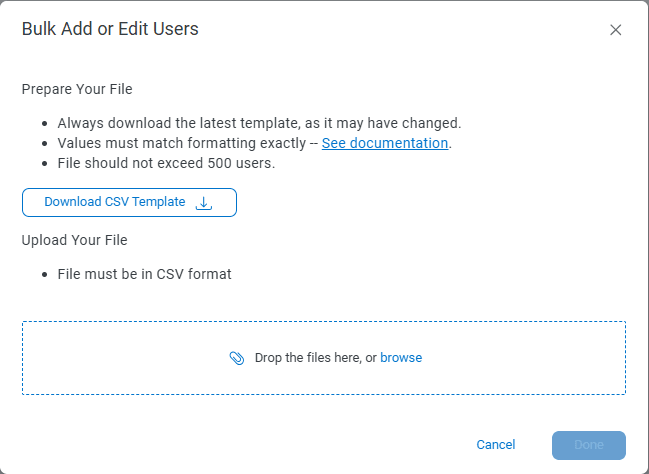
Select the Bulk Add or Edit Users tab.
-
Download the provided template. Add user information and save the file to .CSV format
-
Upload the .CSV file under Upload Your Files.
-
Select Run Validation. Review any errors if found. Select Import All once complete.
-
Review the summary and Close.
Download Revu
Download the EXE Files for Individual Installation
- Go to the Bluebeam Download Center
- On the Bluebeam Revu tile, click Download for Desktop.
.MSI Files for Network Deployments and Silent Installations
- Go to the Bluebeam Revu 21 Deployment Guide
- Locate the Download Deployment Packages (MSI) Section
- Download the .MSI
Install Revu for Individuals
- Download the installer from the Bluebeam Download Center
- Double-click the newly downloaded .exe file to launch the installation wizard
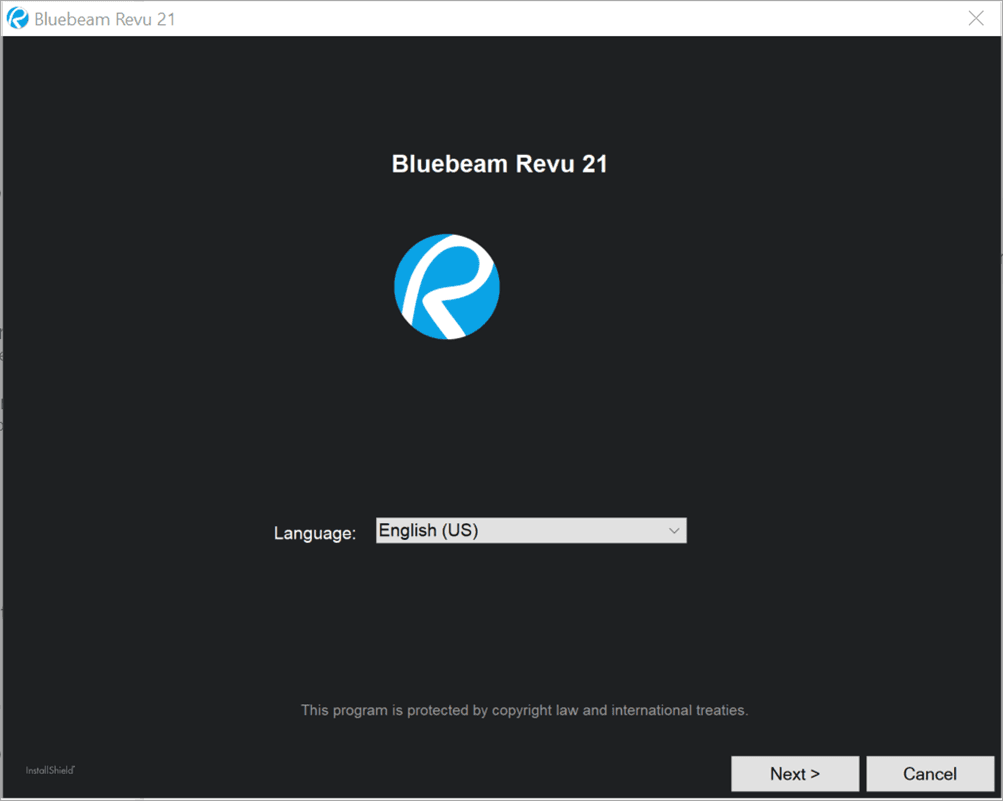
- Select your Language > Next
-
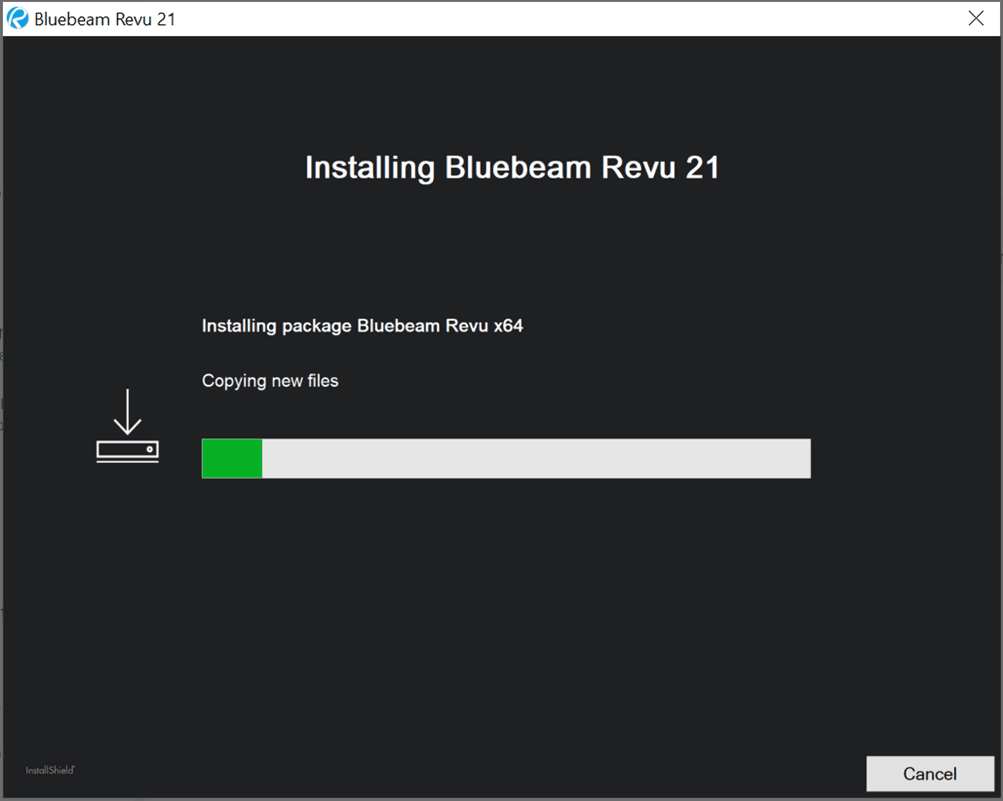
The installer will begin and show a progress bar
-
After the installer completes, select Finish
-
Launch Revu 21
-
Sign in with your Bluebeam ID to activate and use the software.
Deploy Revu for Organizations
Bookmark and follow the instructions in the Bluebeam Revu 21 Deployment Guide
Org Admin Pro
If you have purchased Org Admin Pro, learn how to navigate your Studio users and data in our guide: Bluebeam Org Admin Pro: A Smarter Way to Manage Users and Studio Data
We are here to support you with your new Bluebeam licenses and all your business needs. Please contact us and let us know if there is a way ARKANCE can ensure you, your team, and your projects are successful.